
A Desmos Geometry Calculator is a free, interactive online tool designed for creating and exploring geometric constructions. It allows users to draw points, lines, circles, and polygons, and investigate concepts like transformations and angles, making it a valuable resource for students and teachers learning geometry.
Is geometry difficult to picture in your head? For many students, concepts like lines, angles, and shapes can feel abstract and confusing. At eLearnSmart, we believe learning should be easy. That’s why we offer powerful, free educational resources to help you master any subject. Our collection of over 100 free calculators is designed to turn tough problems into easy-to-understand solutions.
We are excited to introduce our free, Desmos-style geometry calculator. This tool is more than just a calculator—it’s an interactive space where you can draw shapes, plot points, explore transformations, and see math concepts in action. It’s designed to make learning geometry fun and effective. You get the same easy-to-use experience as other top platforms, and it’s completely free as part of our collection of over 100 tools.
Ready to change the way you learn geometry? In this guide, we’ll explain why an online geometry calculator is such a helpful tool. We will walk you through using our powerful Desmos geometry calculator, explore its best features, and show you why it’s a great learning tool for students.
What is an Online Geometry Calculator?

An online geometry calculator is a powerful tool that works right in your web browser. It lets you build, move, and study geometric shapes. This turns complex math ideas into something you can see and interact with.
Think of these calculators as a digital drawing board. You can draw points, lines, angles, circles, and polygons. You can also perform actions like measuring shapes, transforming them, and solving problems. These tools are very helpful for students or anyone who works with geometry.
Why Use A Desmos-style geometry calculator?
A Desmos-style geometry calculator, like the one from eLearnSmart, is designed to be easy to use and interactive. Its user-friendly layout makes it simple to create complex geometric shapes. You can drag points, adjust settings, and see the results instantly. This hands-on approach helps you understand geometry much better.
Along with this geometry tool, eLearnSmart offers over 100 free professional calculators across 13 subjects. Our platform is designed to help you master any topic. All of our calculators, including the Desmos geometry tool, are free to use online for students and teachers everywhere [1].
Core Functions of Online Geometry Tools
Features can differ, but most online geometry calculators share the same basic functions. Our free Desmos geometry calculator includes all of these and more:
- Interactive Construction: Easily draw and move basic geometric shapes, such as points, lines, segments, rays, and angles.
- Shape Creation: Build polygons, circles, and other complex shapes using coordinates, lengths, or angles.
- Measurement and Calculation: Quickly find the length, area, perimeter, and angle of any shape. This saves time and prevents mistakes.
- Transformations: See how shapes change with reflections, rotations, translations, and dilations. Watch how these actions affect your figures.
- Dynamic Exploration: Use sliders or drag points to change your shapes. See the effects in real time to better understand key concepts.
An online geometry calculator is more than a tool for solving problems. It’s a learning space that encourages you to experiment and discover new ideas in math.
How to Use Our Free Desmos-Style Geometry Calculator
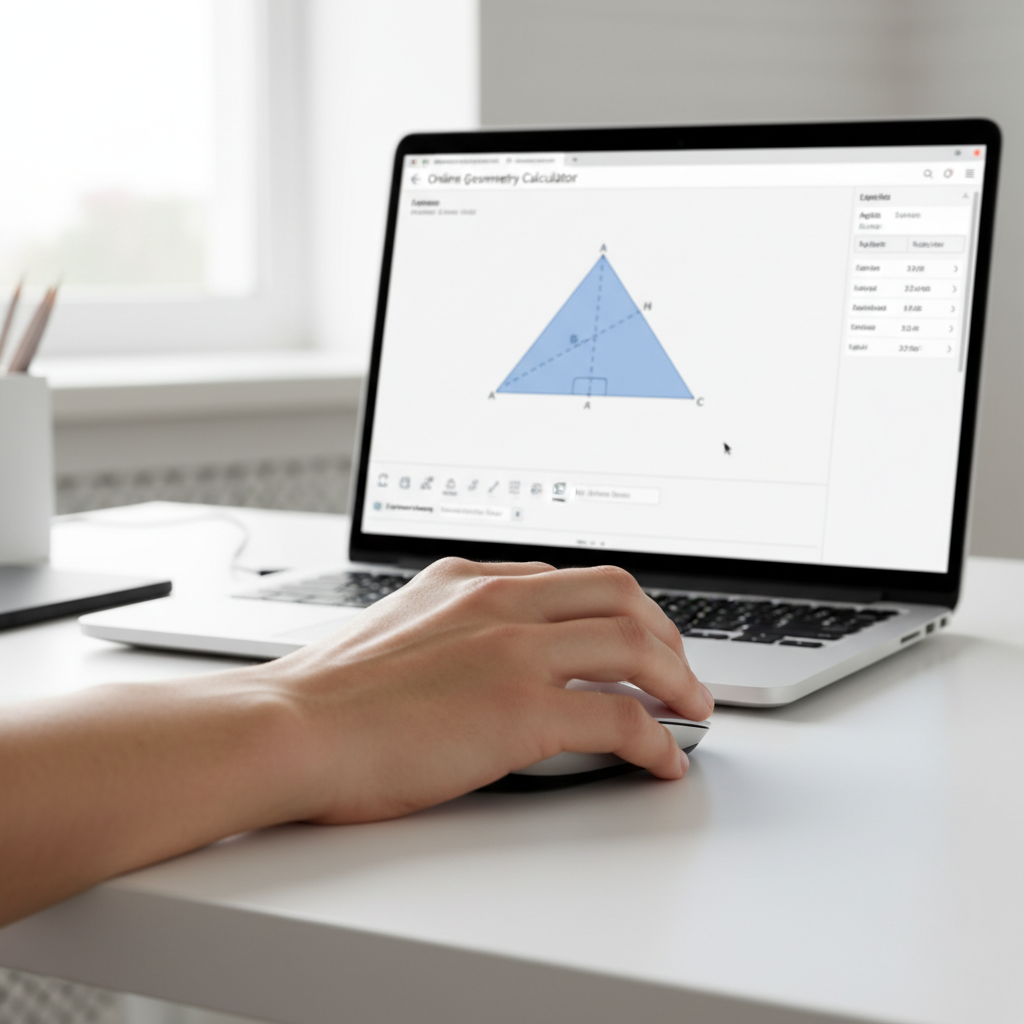
Getting Started: The Main Toolbar
Welcome to our free Desmos-style geometry calculator. It’s one of over 100 professional tools from eLearnSmart that make hard subjects easier. Our geometry tool is easy to use, so you can start learning right away.
When you open the calculator, you’ll see a main toolbar. This toolbar has all the tools you need to build and change shapes. Learning these icons will help you explore geometry much faster.
Key elements of the main toolbar include:
- Selection Tool: Use this to select, move, or resize shapes. Just click and drag what you want to change.
- Point Tool: Click to create new points on the canvas. Points are the starting blocks for everything you build.
- Line/Segment Tools: Draw lines, rays, or segments between two points. Use them to connect parts of your drawing.
- Shape Tools: Quickly build polygons, circles, and other shapes. This makes it easy to create complex figures.
- Undo/Redo: Easily fix mistakes or go back a step. This helps you learn by trying things out [2].
- Zoom/Pan: Change your view of the drawing area. Zoom in to see details or zoom out for a wider view.
Each tool is clear and easy to find. You can start building geometric shapes right away.
Creating Basic Geometric Constructions
Our Desmos-style geometry calculator makes it simple to create basic shapes. You can easily build the core figures of geometry. It’s like using a digital compass and straightedge. Digital tools often make geometry work more accurate and faster [3].
Follow these simple steps to create common geometric constructions:
- Drawing Points: Choose the “Point” tool and click anywhere on the canvas to add a point. You can also label your points.
- Constructing Lines and Segments: Select the “Line” or “Segment” tool. Click on two points to draw a line or segment between them.
- Creating Circles: Choose the “Circle” tool. Click once for the center and again for a point on the edge to set the radius. A circle will appear right away.
- Forming Polygons: Select the “Polygon” tool. Click to place each corner of your shape. To finish, click on the first point you made. For example, a triangle needs three clicks.
- Measuring Angles: Choose the “Angle” tool. Click three points to measure an angle (make sure the corner is the second point you click). The measurement will show up instantly.
Our calculator is interactive. If you drag any point, everything connected to it will change in real-time. This feature helps you see geometry concepts in action.
Exploring Transformations and Functions
Our calculator does more than just basic shapes. It’s also great for exploring transformations and functions. This helps you understand how geometry moves and changes. Transformations are a key part of learning geometry [4].
You can apply different transformations to any shape on your canvas:
- Translation: Move a shape a set distance and direction. Select the shape, pick the “Translate” tool, and define how far and where to move it.
- Rotation: Turn a shape around a fixed point. Choose the shape, the point to rotate around, and the angle of rotation.
- Reflection: Flip a shape over a line. Just select the shape and the line to reflect it across.
- Dilation: Resize a shape from a fixed point. Choose the shape, the center point, and enter a scale factor to make it bigger or smaller.
You can also plot functions directly on the canvas. Type in an equation to see its graph appear with your shapes. Use sliders to change parts of your functions or transformations. This lets you create fun animations and see how changing a variable affects the result.
For example, you can make a point move along a graph. You can also watch a shape change as you move a slider that controls its rotation. This interactive process makes learning more engaging.
Saving and Sharing Your Work
Our free Desmos-style geometry calculator makes it easy to save and share your work. This helps you work with others and come back to your projects later. Tools that allow sharing can help students work together better [5].
Here’s how to manage your geometry projects:
- Saving Your Construction: Find the “Save” or “Export” button in the menu. You can save your work to your device as a project file or as an image. Saving it as a file keeps all your steps.
- Loading Existing Projects: Use “Open” or “Import” to load a saved file. This allows you to keep working on a project later.
- Sharing Your Work: Our tool can create a special link for your work. Copy this link to share with friends or teachers. They can see and interact with your drawing.
- Exporting as Image: You can also save your work as an image file (like a PNG or JPG). This is great for adding to reports or presentations.
These features help you continue your work without losing progress. You can easily show what you’ve learned and work with others on tough problems. Our platform has over 100 calculators to help you learn in many different subjects.
What are the Key Features of this Geometry Tool?
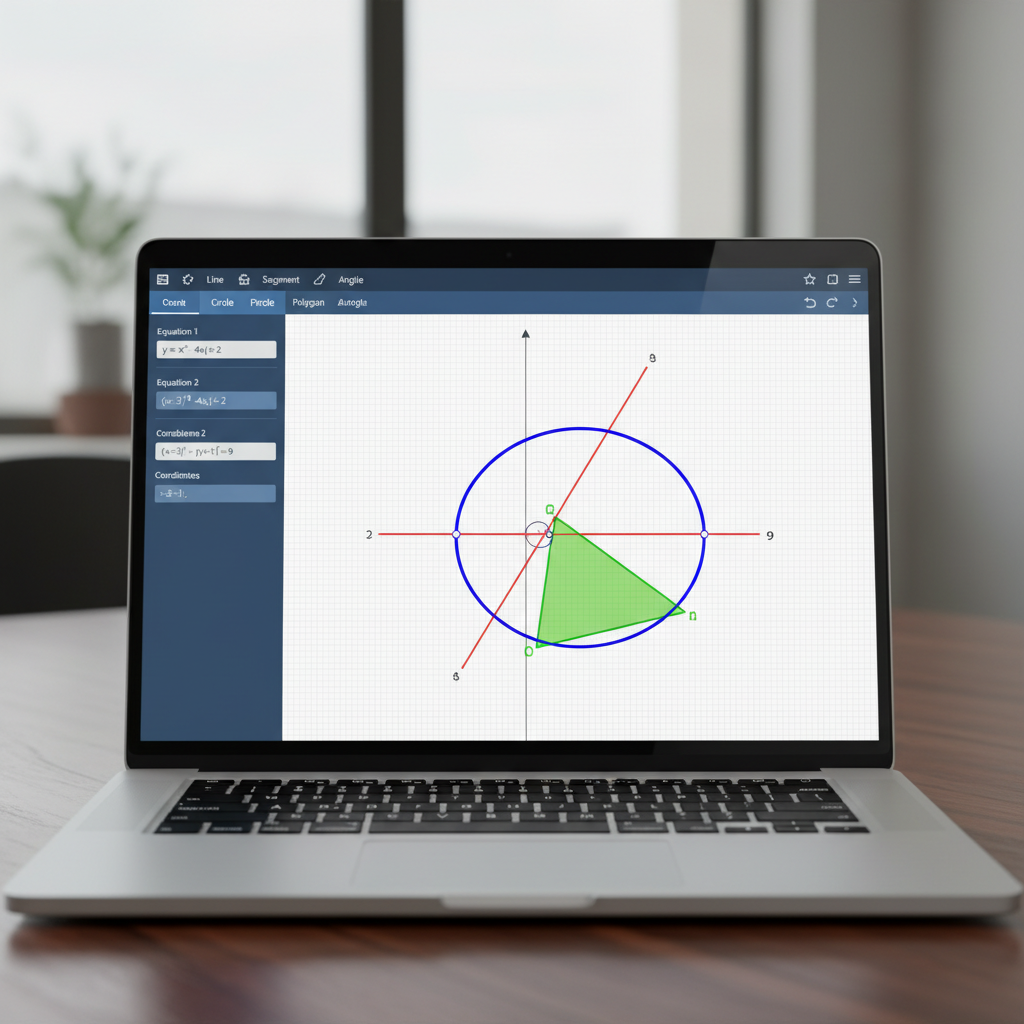
Intuitive Drawing and Construction Tools
Our eLearnSmart geometry tool makes creating shapes simple. Its friendly design is easy for anyone to learn, helping you accurately draw basic geometric figures.
- Points: Place individual points precisely anywhere on the plane.
- Lines, Segments, and Rays: Draw straight lines, defined segments, or endless rays with simple clicks.
- Circles and Arcs: Create circles using a center and radius, or draw specific arcs to complete your designs.
- Polygons: Easily build triangles, quadrilaterals, and other multi-sided polygons.
- Special Constructions: Use simple, dedicated tools to draw perpendicular lines, parallel lines, and angle bisectors.
You can drag and drop elements for direct control. This provides instant visual feedback and helps you better understand geometric relationships.
Support for Complex Geometry Functions
Our tool goes beyond basic drawing to handle advanced functions. It lets you explore complex geometric ideas, making it essential for higher-level math.
- Geometric Transformations: Apply transformations like translations, rotations, reflections, and dilations to see how they affect shapes in real-time.
- Measurements: Accurately measure segment lengths, polygon areas, and angles to get clear, numerical data.
- Conic Sections: Graph and adjust parabolas, ellipses, and hyperbolas to understand their unique properties and equations [6].
- Intersections: Automatically find the exact intersection points between lines, circles, and other curves.
- Loci: Trace the path of a point that meets certain conditions to reveal complex patterns.
These powerful features make our tool very flexible for solving a wide range of geometry problems. It also works well with the many other free calculator tools on eLearnSmart.
Interactive Sliders and Animations
Interaction is a key part of learning. Our geometry tool has dynamic sliders that let you instantly adjust values and see the changes in your drawings right away.
- Dynamic Parameters: Use sliders to control variables like a circle’s radius or a polygon’s side length, and watch the shapes change in real time.
- Visualizing Relationships: See how changing one element affects others, which helps you understand cause and effect in geometry.
- Animations: Create animations to show transformations, angle changes, or the movement of points, bringing abstract ideas to life [7].
- Exploratory Learning: Freely experiment with different values to encourage discovery and test your ideas.
These interactive features make geometry much easier to understand. They turn static drawings into dynamic explorations, reflecting a modern approach to learning. Our platform offers over 100 free calculator tools that focus on this type of interactive learning.
How Does This Compare to Alternatives like GeoGebra?
Looking for an online geometry tool? You’ve probably heard of GeoGebra. It’s a powerful tool with many features. But our free Desmos-style geometry calculator has its own unique benefits. It’s designed to be simple and easy to use. Both tools are great for learning. They help you see and work with math ideas. Knowing the differences can help you pick the right one for you.
Comparative Analysis: Our Tool vs. GeoGebra
Our Desmos-style geometry calculator is all about being easy to use. It focuses on simple, clear geometry. GeoGebra, on the other hand, combines geometry with algebra, calculus, and statistics. It gives you a wider range of math tools [8]. Our tool provides a focused environment just for geometry. This makes it great for learners who want a simple tool and for anyone needing to explore geometry quickly.
| Feature/Aspect | eLearnSmart’s Desmos-Style Geometry Calculator | GeoGebra |
|---|---|---|
| Primary Focus | Easy-to-use geometry and graphing. | An all-in-one math tool (geometry, algebra, calculus, statistics, 3D). |
| Ease of Use | Very easy to learn and use. | Powerful, but can be harder for beginners to learn. |
| Interface Design | Clean, simple, and user-friendly. | Has many features, options, and views. |
| Scope of Tools | Focused on strong geometry tools and interaction. | Includes tools for many different types of math. |
| Platform Integration | Part of eLearnSmart.com’s collection of over 100 free calculators. | A separate set of powerful apps and web tools [8]. |
Why Choose eLearnSmart’s Desmos-Style Geometry Calculator?
Our tool is great because it’s focused. It makes complex geometry easy to understand, so it’s accessible for both beginners and experts. Plus, it’s part of a much larger system. eLearnSmart offers over 100 free, professional calculators across 13 different subjects. When you use our geometry calculator, you get access to all of them. So, it’s more than just a single tool—it’s your gateway to complete academic support, making eLearnSmart a powerful learning platform.
Frequently Asked Questions
What are the main Desmos Geometry functions?
Our free Desmos-style geometry calculator has many powerful functions. You can use it to easily see and work with geometric shapes, making it simpler to master complex ideas.
Key functions and features of this online tool include:
- Basic Geometric Constructions: Easily draw points, lines, segments, rays, and vectors. You can also construct angles, circles, and different types of polygons.
- Transformations: Explore geometric transformations like translations, rotations, reflections, and dilations. Watch how shapes change in real-time.
- Measurements and Calculations: Accurately measure lengths, angles, and areas. The calculator gives you immediate feedback to help with problem-solving.
- Coordinate Geometry Integration: Work on a dynamic coordinate plane where you can define points, lines, and shapes by their coordinates. This is a great way to connect algebra and geometry.
- Interactive Sliders: Use sliders to change values like radii, angles, or coordinates. This lets you see how variables affect geometric figures.
- Advanced Tools: Build perpendicular and parallel lines, midpoints, and angle bisectors. These tools help with more complex geometry problems and proofs.
Can you use this Desmos geometry calculator online?
Yes, our Desmos-style geometry calculator is completely online. You can access its powerful tools from anywhere with an internet connection.
You don’t need to download or install anything. Just open it in your web browser to get started. Our free calculator works on desktops, laptops, tablets, and smartphones, making it accessible to all students and teachers.
Is there a Desmos geometry 3D version?
The main Desmos Geometry tool, and our version, is for 2D (two-dimensional) constructions. It’s great for plane geometry tasks like drawing shapes, doing transformations, and calculating properties in a 2D space.
However, Desmos has a separate 3D Calculator for graphing in three dimensions [9]. It’s designed for viewing surfaces and solids. While our geometry tool focuses on 2D, eLearnSmart offers many other calculators for different math needs.
Where can I find a geometry calculator app?
You can find a powerful, free geometry calculator right here at eLearnSmart. Our Desmos-style tool is easy to use in the web browser on any of your devices.
Our online tool works like an app in your browser, giving you all the features without any installation. eLearnSmart also offers over 100 other free calculators in 13 different subjects, so you can find the right tool for whatever you’re studying.
Sources
- https://www.desmos.com/geometry
- https://www.edutopia.org/article/benefits-iterative-learning
- https://www.nctm.org/journals/teaching-children-mathematics/articles/digital-tools-for-math/
- https://www.maa.org/press/periodicals/convergence/the-history-of-transformations-in-geometry
- https://www.iste.org/explore/education-technology/benefits-student-collaboration
- https://www.mathopenref.com/conics.html
- https://www.nctm.org/uploadedFiles/Journals_and_Books/Books/YY_Mathematics_Teacher_Educator/MTE_Vol2No1_Hortin.pdf
- https://www.geogebra.org/
- https://www.desmos.com/3d
