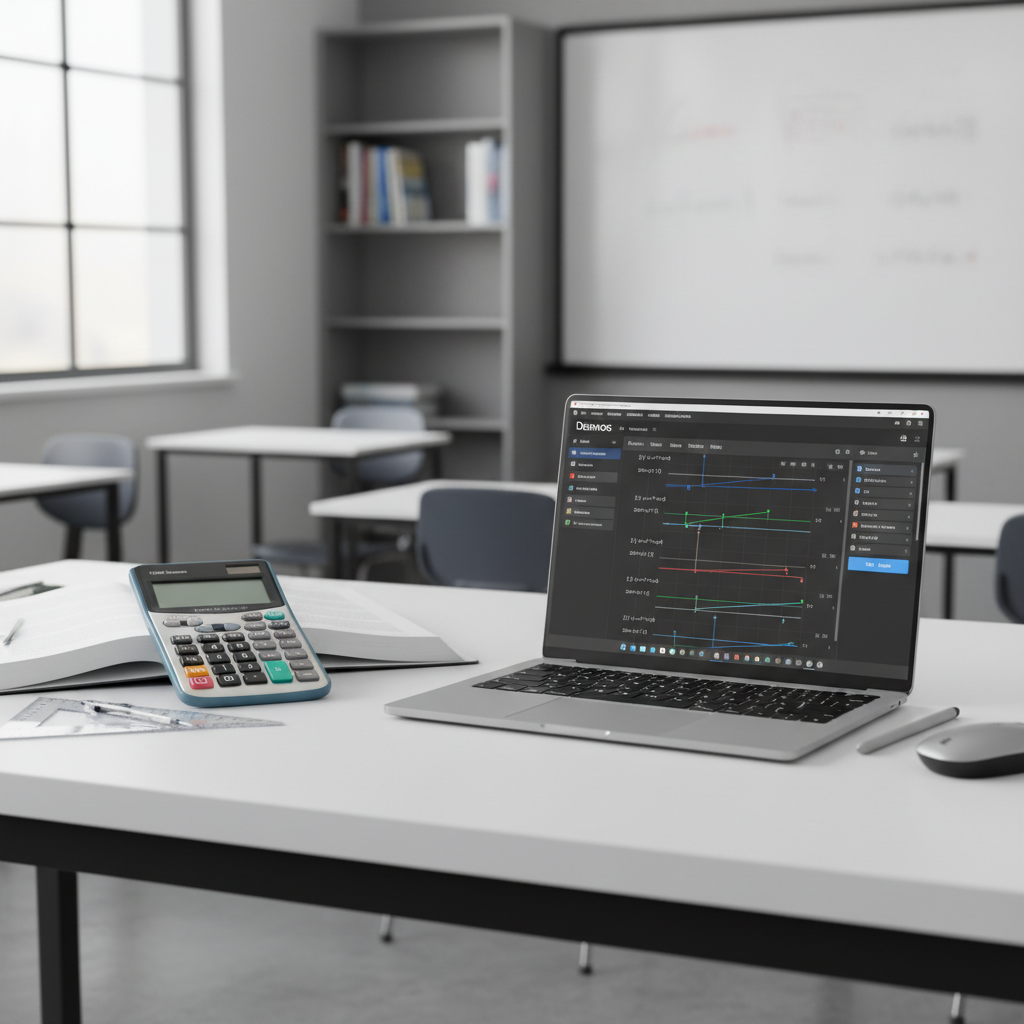
Desmos is a free, web-based graphing calculator acclaimed for its intuitive, user-friendly interface and dynamic visualization features. In contrast, the TI-84 is a physical, handheld graphing calculator that is the long-standing industry standard for high school and college math, and is approved for use on many standardized tests like the SAT.
Choosing the right graphing tool for math and science is an important decision. It affects how you solve problems and visualize abstract ideas. For years, the TI-84 has been the standard, a trusted handheld calculator in many classrooms. Now, there’s a strong new competitor: Desmos, a browser-based marvel that is flexible and easy to use. This article will help you decide which graphing calculator best fits your needs.
This guide compares the Desmos graphing calculator and the classic TI-84. We’ll look at key factors like cost, accessibility, ease of use, graphing features, and their eligibility for standardized tests. Our goal is to give you the information you need to make a smart choice and pick the best tool to help you succeed in class.
Beyond this comparison, it’s also helpful to explore the multitude of free calculator options available today. As you decide between a physical device and an online platform, remember that the digital world offers many helpful resources. Whether you need a powerful online graphing calculator or are looking for alternatives to an online graphing calculator TI 83, there are plenty of tools to support your math journey.
Desmos vs. TI-84: Which Calculator Should You Choose?
A Quick Comparison: At a Glance
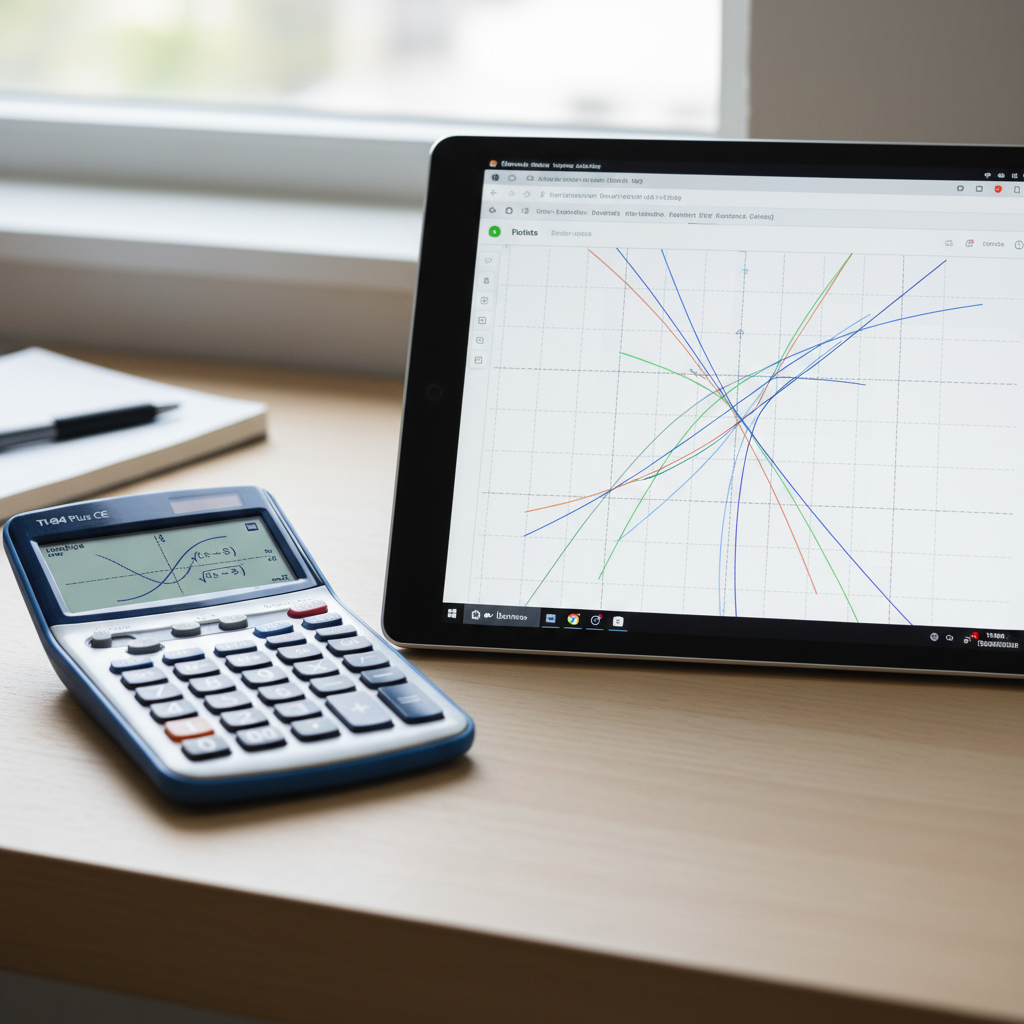
Choosing the right graphing calculator is key for school. Both Desmos and the TI-84 Plus CE are powerful tools. However, they are built for different learners and classrooms. One is a modern app, while the other is a classic handheld calculator. The first step is to understand what each one offers.
We’ve made a quick overview to help. This table shows the main differences at a glance, so you can see the strengths of each tool.
| Feature | Desmos Graphing Calculator | TI-84 Plus CE Graphing Calculator |
|---|---|---|
| Format | Web-based application, mobile app | Physical handheld device |
| Cost | Free (web and basic app features) | Approximately $120-$150 [1] |
| Accessibility | Internet required (web), available on most devices | Requires purchase, must be carried with you |
| User Interface | Intuitive, dynamic, drag-and-drop, visual | Button-based, menu-driven, traditional input |
| Portability | On a smartphone, tablet, or laptop | Standalone handheld unit |
| Test Usage | Permitted on some exams (e.g., ACT, Digital SAT), often with specific versions | Widely permitted on most standardized tests (e.g., SAT, ACT, AP exams) [2] |
| Offline Access | Limited (some app features), works best online | Works fully without internet |
If you’re looking for free and powerful tools, eLearnSmart offers over 100 professional calculators. They cover 13 different school subjects. Our platform is a great alternative to traditional calculators.
Understanding the Core Differences
Both Desmos and the TI-84 can graph functions, but they are designed very differently. This makes a big difference in how you use them. Each one is strong in different ways.
- Digital vs. Physical: Desmos is a modern, online graphing calculator. It uses current web technology. The TI-84 is a specialized physical calculator. It has been a common tool in classrooms for decades.
- Cost and Access: Desmos is free and works on any web browser or mobile device. This makes it very easy to get started. The TI-84, on the other hand, costs a lot of money upfront. Students have to buy the calculator.
- User Interface and Interaction: Desmos is great for its easy-to-use, live graphing. You can type equations and see graphs update instantly. Its drag-and-drop features are very visual. The TI-84 has a traditional system that uses buttons and menus. You often need to know specific commands and how to find them. Many students find Desmos is faster to learn at first.
- Connectivity and Portability: Desmos needs an internet connection for all its features. However, its mobile app has some features that work offline. The TI-84 works anywhere, anytime, with all its features. No internet is ever needed. Its strong physical design can handle daily use.
- Test Compatibility: The TI-84 is accepted on almost all standardized exams. This is a big advantage. Desmos is being allowed on more tests, but the rules change depending on the exam. Always check exam rules before testing.
- Learning and Exploration: Desmos is great for exploring math interactively. Students can easily change parts of an equation and see the graph update in real time. This visual feedback is great for understanding concepts. The TI-84 is also powerful, but it often requires you to learn its specific commands. It’s built for exact answers and complex calculations.
In short, Desmos offers a free, dynamic, and very visual experience. The TI-84 is a reliable, test-approved, physical calculator. Its traditional design means it works the same way everywhere. If you are looking for other free and flexible options, eLearnSmart’s large collection of calculators offers powerful alternatives.
Feature Breakdown: Desmos vs. TI-84
Cost and Accessibility
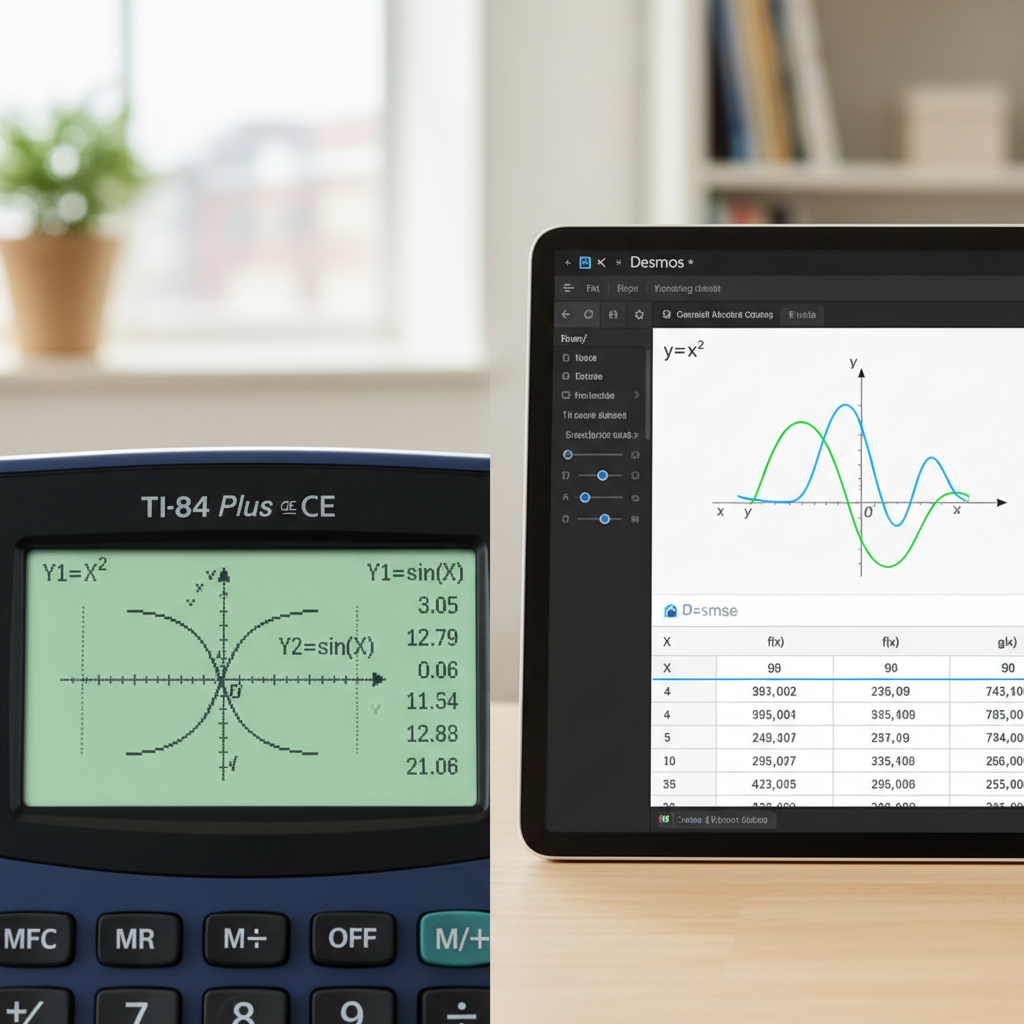
Cost and ease of access are the first things to consider. Desmos and the TI-84 are very different in this area.
Desmos: Free and Widely Available
- Price: Desmos is completely free. [3]
- Availability: Access it in a web browser on any computer, tablet, or smartphone.
- Apps: Free apps are available for iOS and Android devices. [4]
- Installation: No installation is needed to use the web version. Just open your browser.
This makes Desmos easy for anyone to access. Students can use it at home, at school, or on the go.
TI-84: A Significant Investment
- Price: A TI-84 graphing calculator usually costs between $100 and $150. [5]
- Hardware: It is a physical device that you must buy.
- Software: Official desktop software often requires a paid subscription.
- Updates: Software updates are available but you must install them manually.
The high cost of a TI-84 is a big factor. However, it is a dedicated, physical tool. Many schools require students to have one.
eLearnSmart Advantage: If you’re looking for free calculator tools, eLearnSmart offers over 100 professional calculators. Our complete set of tools includes powerful graphing features, all for free.
User Interface and Ease of Use
How you interact with a calculator affects learning and speed. Desmos and the TI-84 have very different interfaces.
Desmos: Intuitive and Modern
- Input: You can type functions with a regular keyboard or an on-screen one.
- Visual Feedback: Graphs update instantly as you type, which gives you immediate feedback.
- Controls: It’s easy to zoom and move around the graph with a mouse or touch screen.
- Learning Curve: Most people find Desmos easy to use because of its user-friendly design.
Desmos focuses on a clear, interactive display. Its modern design feels familiar to students today. Also, using sliders to see how graphs change is very smooth.
TI-84: Button-Based and Traditional
- Input: You enter commands with physical buttons, which means you have to memorize button patterns.
- Screen: The screen is smaller and has a lower resolution.
- Navigation: Getting through menus often takes many button clicks.
- Learning Curve: It takes longer to learn at first. You need practice to master its commands.
The TI-84’s interface is solid and reliable, but it has an older design. You have to learn how it works, which can be hard for new users.
Graphing Capabilities and Visualization
Graphing is the main job of these tools, but they show math concepts in very different ways.
Desmos: Dynamic and Detailed Graphs
- Resolution: Desmos creates sharp, colorful graphs.
- Interactivity: The graphs are very interactive. You can drag points or use sliders to change them.
- Customization: It’s easy to change colors, line styles, and points.
- Types of Graphs: It can graph many types of functions, including implicit equations, inequalities, parametric, and polar graphs.
- Data Plotting: You can easily plot and analyze data in tables.
Desmos is great at making math concepts easy to see. Its interactive style makes it easy to explore how graphs change. For example, you can animate a slider to show how a graph changes over time.
TI-84: Functional but Basic Graphs
- Resolution: The TI-84 has a lower-quality screen, so graphs look more blocky.
- Interactivity: Interaction is limited. You can only trace points along a graphed line.
- Customization: Customization is basic. You can usually only change line thickness or color (on CE models).
- Types of Graphs: It handles standard graphs like parametric and polar equations, but more complex ones are harder to create.
- Graphing Speed: Complex graphs can take longer to appear.
The TI-84 offers reliable graphing. It works well for most high school and college math. But its graphs don’t look as good, and it lacks the quick, smooth feedback of Desmos.
Portability and Offline Access
Where and how you use your calculator is important. It often depends on your internet connection and device.
Desmos: Flexible but Needs the Web
- Internet: The full web version of Desmos requires an internet connection. [6]
- App Functionality: The mobile app has some offline features, but you need an internet connection for everything to work.
- Device Flexibility: You can use it on almost any device with internet, like a laptop, tablet, or phone.
- Portability: It’s very portable because it’s software. Your calculator is whatever device you’re using.
Desmos is very flexible, which is a big plus. Its main downside is that it needs the internet for all its features. This can be a problem for tests where Wi-Fi is not allowed.
TI-84: Always Ready and Independent
- Internet: It does not require an internet connection. It works completely offline.
- Power: It runs on batteries that last for many hours.
- Device: It is its own dedicated, physical device.
- Portability: It is designed to be portable and fits easily in a backpack.
The TI-84 is extremely reliable for offline use. This makes it perfect for exams that don’t allow internet access. As a physical device, it always performs the same way.
Is Desmos better than a TI-84 for the SAT?

Official SAT Calculator Policy
The College Board has clear rules for using a calculator on the SAT. It’s important to know these rules before test day. The digital SAT has changed things a lot. It now has a graphing calculator built right into the test.
The digital SAT includes the Desmos graphing calculator [7]. This means you don’t have to bring your own calculator for the digital exam. But, if you prefer, you can still bring most handheld graphing calculators, like the TI-84. This rule is true for both the digital and paper SAT.
It’s important to check the latest College Board rules. They have a full list of approved calculators. Make sure your calculator is on their list.
Pros and Cons for Test Taking
When choosing between Desmos and a TI-84 for the SAT, you should think about a few things. Each calculator has its own pros and cons for test day.
Desmos (Integrated Digital SAT)
- Pros:
- Seamless Integration: It’s built into the test, so you don’t need a separate device.
- Cost-Free: You don’t have to buy a graphing calculator.
- Familiarity: When you practice for the digital SAT, you’ll already be using Desmos.
- Visual Clarity: The graphs are clear and easy to use on the screen.
- Cons:
- Digital-Only: You can only use it on the digital SAT, not the paper test.
- On-Screen Interface: Using a mouse or trackpad can feel slower than pushing real buttons.
- Reliance on Software: You need to be comfortable with how the software works.
TI-84 (Handheld Calculator)
- Pros:
- Tactile Experience: For many students, physical buttons are familiar and faster to use.
- Broad Acceptance: The TI-84 is allowed on most standardized tests and used in many classes.
- Offline Functionality: It works anywhere and doesn’t need an internet connection.
- Extensive Features: It has powerful features for other math classes, not just the SAT.
- Cons:
- Cost: TI-84 calculators can be expensive.
- Battery Dependence: You have to make sure the batteries are fresh on test day.
- Portability: You have to remember to bring it with you.
- Learning Curve: It takes practice to learn how to use all its buttons.
Here’s a quick comparison for test-day considerations:
| Feature | Desmos (Digital SAT) | TI-84 (Handheld) |
|---|---|---|
| Availability | Built into the digital SAT. | Must bring your own. |
| Cost | Free (built-in). | Purchase required. |
| Interface | On-screen with mouse/trackpad. | Physical buttons. |
| Power Source | Uses the computer’s power. | Needs fresh batteries. |
| Offline Use | Only available in the test. | Works anywhere, anytime. |
When to Use Each Tool for Prep
Good SAT prep means using the right tool at the right time. Both Desmos and the TI-84 can be useful for studying. Knowing when to use each one will help you be more prepared.
For Desmos Prep:
- Digital SAT Practice: Use the official practice tests from the College Board. This will help you get used to the built-in Desmos calculator.
- Graphing Concepts: Use Desmos to see graphs of functions and solve problems visually. It’s interactive, which helps make hard ideas easier to understand.
- Quick Checks: Desmos is very fast for plotting graphs and looking at data.
- Problem Solving: Use Desmos for problems where seeing a graph or making a quick table helps find the answer.
For TI-84 Prep:
- Paper SAT Prep: If you’re taking the paper SAT, you must practice a lot with your TI-84.
- Physical Buttons: If you work faster with physical buttons, practice with your TI-84 to improve your speed and accuracy.
- Advanced Features: Learn its special features for harder problems, like statistics or matrices, if they are on your test.
- Basic Skills: Use the TI-84 to get better at basic calculations and order of operations.
Many students find it helpful to practice with both. Get good at using Desmos for the digital SAT. At the same time, learn the TI-84 well, as you can use it in other classes. Remember, our platform at eLearnSmart offers over 100+ free calculator tools. They can help with all kinds of math practice and add to your SAT prep.
Can I use Desmos instead of a graphing calculator?
For Homework and Learning
Desmos is an excellent tool for homework and self-study. It’s a powerful [3] online graphing calculator.
It helps students visualize complex functions with its user-friendly interface, making abstract concepts easier to understand. Desmos also supports many math topics, including algebra, calculus, and statistics.
Here’s why Desmos is great for learning:
- Interactive Exploration: You can adjust sliders to see graphs change in real-time. This instant feedback helps you understand concepts better.
- Visual Clarity: Its graphs are clear, high-resolution, and easy to read. This makes it a big improvement over many handheld calculators.
- Accessibility: It works in any web browser, so you can use it on a computer, tablet, or smartphone. This makes it incredibly convenient.
- Sharing and Collaboration: You can easily share your graphs and projects, which is great for group work and learning with classmates.
- Cost-Effective: Desmos is free, making it a great tool for any student.
Desmos is a great choice for understanding math concepts because it helps students learn visually.
For In-Class Use and Exams
Using Desmos in class or for exams is a different story. Whether you can use it depends on the rules.
Many teachers use Desmos for classroom lessons. It’s perfect for live demonstrations where they can show concepts in real-time while students follow along. However, this is usually for learning, not testing.
For exams, the rules are often stricter. Standardized tests like the SAT and ACT have clear calculator policies. The College Board allows specific graphing calculators for the SAT [source: https://satsuite.collegeboard.org/sat/what-to-bring-expect/calculator-policy], but web-based tools like Desmos are not permitted. The ACT has similar rules [source: https://www.act.org/content/act/en/products-and-services/the-act/test-day/calculator-policy.html] and usually bans devices that can connect to the internet.
For in-class exams, your teacher will likely require a physical graphing calculator, like a TI-84 Plus. Always ask your teacher or the exam proctor what tools are allowed before a test.
Limitations of a Web-Based Calculator
While Desmos is powerful, it has some key limitations. Because of these, it can’t always replace a physical calculator like a TI-84 or an online TI-83 emulator.
- Internet Dependency: You need an internet connection to use Desmos. Without one, it won’t work. This can be a major problem in some places.
- Exam Restrictions: As mentioned earlier, most big exams ban web-based tools. You must have a physical calculator for these tests.
- Hardware Familiarity: If you only learn on Desmos, you might not be ready to use a physical calculator’s interface. Many classes still require you to know how to use a TI-84.
- Distractions: Using a web browser can be distracting. It’s easy to get sidetracked by notifications or other open tabs. A physical calculator only does one thing, which helps you focus.
- Offline Access: Unlike a TI-84, Desmos doesn’t work offline. This is a problem if you don’t have a good Wi-Fi connection.
For the best results in school, it’s smart to use a mix of tools. Desmos is fantastic for learning and exploring ideas. But for taking tests or working offline, a physical calculator is still necessary. Our eLearnSmart platform, for example, offers over 100+ free calculator tools for many different subjects. They provide another great option for your math needs.
Is there an online version of TI-84?
Official Emulators and Software
Yes, Texas Instruments (the company that makes the TI-84) offers official software versions of its calculators. These are made mainly for schools and teachers.
The main official software is the TI-SmartView™ Emulator Software. It works just like the real TI-84 Plus CE calculator but on a computer screen. This makes it a great tool for teachers to use in the classroom. They can project it for the whole class to see.
- Availability: Mainly available through paid school licenses. [8]
- Purpose: Designed for teaching. It helps instructors clearly show calculator steps.
- Features: Includes all the same features as the handheld calculator, like graphing, calculations, and programming.
- Cost: Usually requires a paid license, though free trials are sometimes offered.
While these official tools work well, they are not usually free for students to use on their own. They are built for a specific purpose in schools.
Third-Party Online Calculators
Besides the official software, many other websites offer online calculators that work like the TI-84. You can find them with a quick online search. They try to copy the TI-84’s features right in your web browser.
However, the quality of these unofficial tools can vary a lot. Some work great, but others have glitches or missing features. Many also have annoying ads. It is important to be careful when using these sites.
- Accessibility: Usually free and work in any web browser.
- Functionality: Can range from basic math to advanced graphing. Some even act like the older TI-83 models.
- Reliability: Can be inconsistent and may not be updated often.
- Security Concerns: Be wary of sites that ask for personal information. Make sure you trust the website before using it.
- Limitations: Might not have all the features of the newest TI-84 Plus CE calculator.
Using an unverified online calculator for important work, like studying for an exam, can be risky. The buttons and screen might look different, and it may not work correctly for what you need.
Exploring eLearnSmart’s Free Calculator Suite
Many students look for a reliable, free online graphing calculator. This often leads them to compare options like Desmos and the TI-84. At eLearnSmart, we offer a powerful and complete solution.
Our platform gives you access to over 100 professional calculators across 13 different school subjects. This collection includes advanced graphing calculators that are perfect for algebra, calculus, and statistics.
- Free Access: All of our calculators are completely free to use. This removes the need to buy a costly physical calculator.
- Broad Functionality: Our graphing tools can handle complex equations. You can easily plot functions, analyze data, and visualize math concepts.
- User-Friendly Interface: Designed to be simple and easy to use, so students can get started quickly.
- Anytime, Anywhere: Use our calculators online from any device with an internet connection.
- AI Tutor Integration: Beyond calculators, our platform also offers an AI tutor that provides extra help with difficult subjects.
eLearnSmart is an excellent educational platform. We offer a great alternative to both expensive TI-84 calculators and unreliable online tools. Our goal is to give students the best free online resources to help them succeed.
What About the Online Graphing Calculator TI-83?
Finding a TI-83 Online
It can be hard to find the classic TI-83 graphing calculator online. Unlike newer models, Texas Instruments does not offer an official web version. The TI-83 first came out in 1996, before web apps were common. [9]
Many students look for free online alternatives to the TI-83. You might find unofficial emulators or simulators, but they often have drawbacks. They might be missing features or not be up-to-date. Also, sharing them can be a legal gray area. It’s usually better to look for modern, supported options.
Key Differences: TI-83 vs. TI-84
The TI-83 and TI-84 calculators are part of the same family. However, the TI-84 Plus is a big step up. Knowing the differences is important. It will help you choose the right tool for school.
Here is a quick comparison of the main differences:
| Feature | TI-83 (Original/Plus) | TI-84 Plus (and CE) |
|---|---|---|
| Release Year | 1996 (TI-83), 1999 (TI-83 Plus) | 2004 (TI-84 Plus), 2015 (TI-84 Plus CE) |
| Display | Monochrome LCD, 96×64 pixels | Monochrome LCD (Plus), High-resolution color (CE) |
| Memory (RAM) | 24 KB | 24 KB (Plus), 154 KB (CE) |
| Archival Memory | 160 KB (Plus) | 480 KB (Plus), 3.0 MB (CE) |
| Speed (Processor) | 6 MHz | 15 MHz (Plus), 48 MHz (CE) |
| Connectivity | Serial Link cable | USB connectivity (unit-to-unit, unit-to-computer) |
| Preloaded Apps | Fewer, more basic | More, including finance, polynomial root finder, conic graphing |
| Battery Type | AAA batteries | AAA batteries (Plus), Rechargeable battery (CE) |
As you can see, the TI-84 Plus series has major upgrades. It has a better screen, more memory, and a faster processor. It also has better ways to connect and more built-in apps. These changes make complex math and graphing much smoother. [10]
Why Upgrade to a Modern Alternative?
Using an old TI-83 calculator, even an online one, has several drawbacks. It often can’t handle the demands of modern classes. Upgrading to a newer calculator has many benefits.
Here are some good reasons to move on from the TI-83:
- Better Graphing: Newer calculators like the TI-84 Plus CE have high-resolution color screens. This makes graphs much clearer and easier to understand.
- More Speed and Memory: Modern calculators work much faster and can hold more data. This is important for tough math and science classes.
- More Features: The TI-84 Plus series has built-in apps for subjects like calculus, statistics, and finance. The TI-83 either doesn’t have these or has simpler versions.
- Easy Connections: Newer calculators have USB ports for easy data transfer. You can connect them to computers or other calculators to share information and get updates.
- Better for Exams: The TI-83 is allowed on tests like the SAT, but the TI-84 Plus CE is easier to use. Its modern features can help you save time on an exam. [11]
- Free Online Options: You don’t have to buy a costly physical calculator. There are many free online tools, like the powerful graphing calculator Desmos.
If you are looking for a great free online alternative to the TI-83, eLearnSmart is an excellent choice. Our platform does more than just copy the old calculator. We offer over 100 professional calculators covering 13 school subjects. These tools are powerful and often work better than older physical models. You can use advanced graphing features, statistics tools, and much more. All these resources are available for free on elearnsmart.com.
Frequently Asked Questions
Is TI-84 Plus allowed in college?
Yes, most colleges allow the TI-84 Plus series. It’s a standard calculator for math, science, and engineering classes at many universities. Because students often use it in high school, it’s a familiar tool for college.
However, some professors and classes have their own rules. Advanced courses might allow more powerful calculators, while others may limit you to a basic one or none at all. Always check your syllabus or ask your instructor at the start of the semester to be sure [source: University of Waterloo Calculator Policies: https://uwaterloo.ca/math/current-undergraduate-students/forms-and-policies/calculator-policy].
If you need to practice or explore math concepts outside of an exam, eLearnSmart offers over 100 free professional calculator tools. These tools have advanced graphing features and are a great alternative for homework and daily learning.
How do I graph on my TI-84 calculator?
Learning to graph on a TI-84 is an important skill. It helps you see a picture of an equation. Here’s a simple guide to get started:
- Turn On & Clear: First, make sure your calculator is on. Press ON. If you need to, clear old equations by going to Y= and pressing CLEAR on each line.
- Enter Your Equation: Press the Y= button. You will see a list (Y1, Y2, etc.). Use the arrow keys to pick an empty line and type your equation. For example, to graph \(y = 2x + 3\), type
2X+3next toY1=. Use the X,T,θ,n button for the X variable. - Set the Window: Press the WINDOW button. This is where you set the viewing area for your graph. Adjust Xmin, Xmax, Ymin, and Ymax to fit the graph you expect to see. You can also use ZOOM options like ZoomStandard (ZOOM, 6), which sets both axes from -10 to 10.
- Graph the Function: After entering the equation and setting the window, press the GRAPH button. Your calculator will show the graph of your equation.
- Explore Your Graph:
- Press TRACE to move along the line and see specific points.
- Use the ZOOM button to get a closer look or a wider view.
- Press 2nd then CALC (above the TRACE button) to find values like intercepts, minimums, and maximums.
Practice is the best way to get better. If you want an alternative, eLearnSmart’s online graphing calculator is easy to use. It offers many of the same powerful features without needing a physical device.
Why are TI-83 still expensive?
Even though it’s an older model, the TI-83 calculator is still expensive. Here are a few reasons why:
- Market Leader: For decades, Texas Instruments has been the biggest name in school calculators [source: Education Week: https://www.edweek.org/technology/calculator-wars-desmos-vs-ti-84-in-the-classroom/2021/08]. Because people trust the brand’s quality and durability, TI can keep prices high.
- Used in Schools: Many textbooks, classes, and standardized tests (like the SAT and ACT) are designed for the TI-83 and TI-84. This creates steady demand and keeps prices from dropping. Teachers also like using calculators their students already know.
- Built to Last: TI calculators are very durable. They are made to survive years of use by students, which adds to their value.
- Less Competition: While free online tools exist, there are not many other companies making physical calculators that are allowed on standardized tests. With less competition, TI doesn’t have to lower its prices.
- Pricing Strategy: It costs a lot to design and build these calculators. TI sets its prices based on the calculator’s important role in education, not just the cost of its parts.
For students on a budget, online options like Desmos or eLearnSmart’s free calculator tools are great alternatives. They offer powerful, modern features for graphing without the high upfront cost.
Can you graph on a TI-83?
Yes, you definitely can. The TI-83 is a graphing calculator, made for plotting equations and analyzing data. For years, it was the main calculator for many students.
Graphing on a TI-83 is a lot like graphing on a TI-84. You use the Y= button to enter equations, WINDOW to set the screen, and GRAPH to see the plot. While the TI-83 is a good graphing tool, it has some limits compared to newer models:
- Black and White Screen: The TI-83 has a black and white screen. This can make it harder to tell different graphs apart or to see complex data clearly.
- Slower and Less Memory: The TI-83 is slower and has less memory than the TI-84. This means it can take longer to draw difficult graphs or do advanced math.
- Fewer Modern Features: The TI-83 is missing features found in newer models like the TI-84 Plus CE, such as color screens, rechargeable batteries, and a USB port for file transfers.
For today’s graphing needs, an online calculator from a site like eLearnSmart can be faster and easier to use. These digital tools often have better visuals, advanced features, and color graphs, which can make learning easier.
Sources
- https://education.ti.com/en/products/calculators/graphing-calculators/ti-84-plus-ce
- https://collegereadiness.collegeboard.org/sat/taking-the-test/calculator-policy
- https://www.desmos.com/calculator
- https://www.desmos.com/apps
- https://www.amazon.com/TI-84-Plus-Graphing-Calculator/dp/B0001EML0K
- https://help.desmos.com/hc/en-us/articles/202529129-Does-Desmos-work-offline-
- https://satsuite.collegeboard.org/digital/what-to-bring-test-day/approved-calculators
- https://education.ti.com/en/software/details/en/c5bbd5c4149942a4a755d7879e6587be/ti-smartview-ti84plusce
- https://www.ti.com/education/products/graphing-calculators/ti-83-plus/
- https://education.ti.com/en/us/products/graphing-calculators/ti-84-plus-ce-python
- https://satsuite.collegeboard.org/sat/what-to-bring-expect/calculator-policy
